The SQL Schema Extender Windows Services
You have done everything and now you are ready to run your system. You have:
•Configured your SQL Schema Engine (Enterprise) software to produce and export API Key Files.
•Configured your Global Settings.
•Created and Enabled 1 or more Extender Profiles.
So now you want to run your SQL Schema Engine Extender and start using it to import HL7 messages into your UltraPort SQL Schema Tables. Before you run a profile in your Windows Services you might want to TEST it first by Running It Locally.
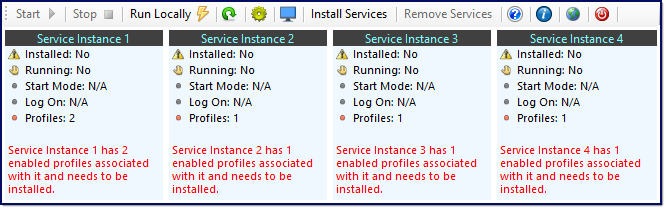
Step 1. Install Your Windows Services
At this point you need to click Install Services to register your SQL Schema Extender services in the Microsoft Windows Services list. NOTE: Anytime that the Install Services button is enabled you should click it.
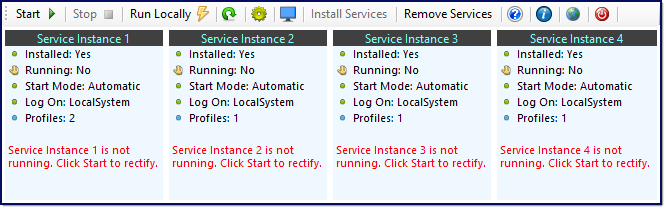
Step 2: Start Your Services
Click Start  on the toolbar which issues a Service Start command for all installed services.
NOTE: If you click Start and don't see a change in the status click Refresh ( ).
).
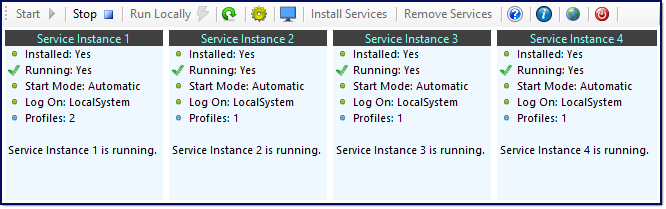
To stop your services just click Stop  which Issues a Service Stop command for all running services.
You can see a complete breakdown of the toolbar and what the buttons do in The Main Window.

You can also start or stop your services from within the MS Windows Services list. Just click
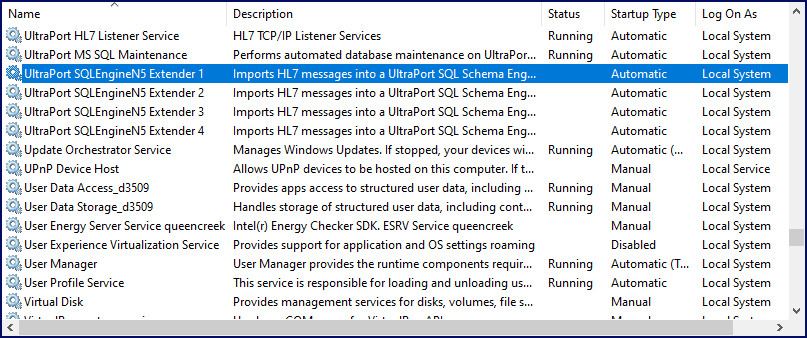 Windows Services List
Just RIGHT click on the preferred service and click Start (or Stop) as you wish. If you do start or stop your service(s) this way remember to click
|
 to open the MS Windows Services. and scroll down to the UltraPort Services.