What do you need help with?

|
||||||||
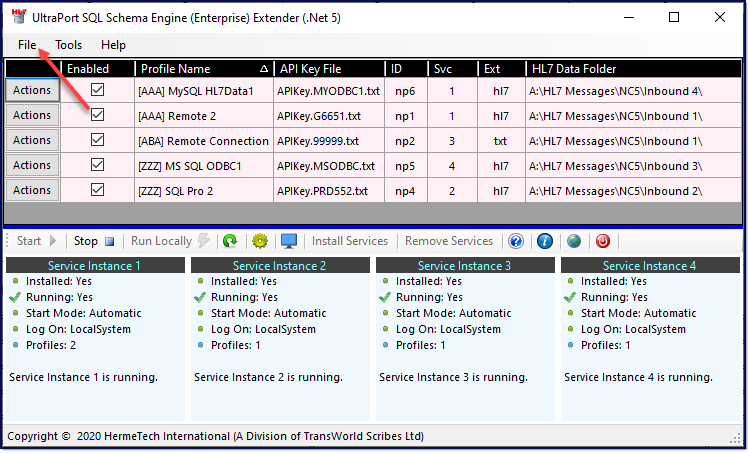


 ) and select which
  ) to get to this document.
 ) and the Test Connection button
  will become enabled. Click the Info button (
OR
|
|
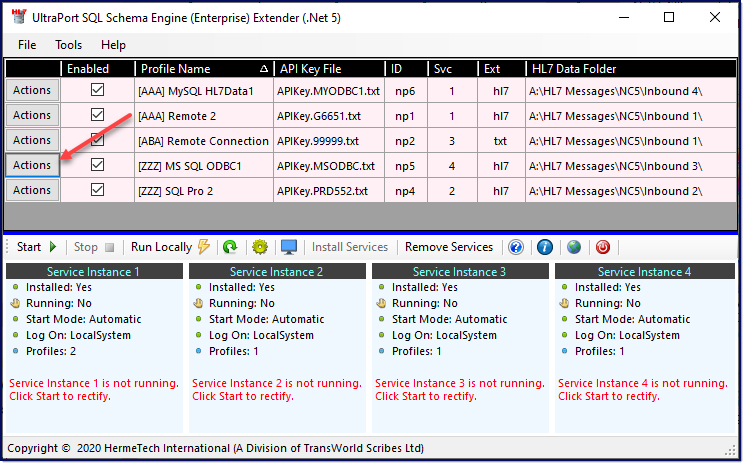 |
Step 1. In the Main Window:
Click Actions button next to the profile you wish to edit. |
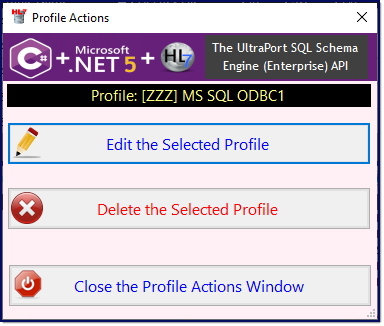 |
Step 2. In the Profile Actions Window:
Click the Edit Selected Profile button. This will bring up the Add / Edit Profile Window. |
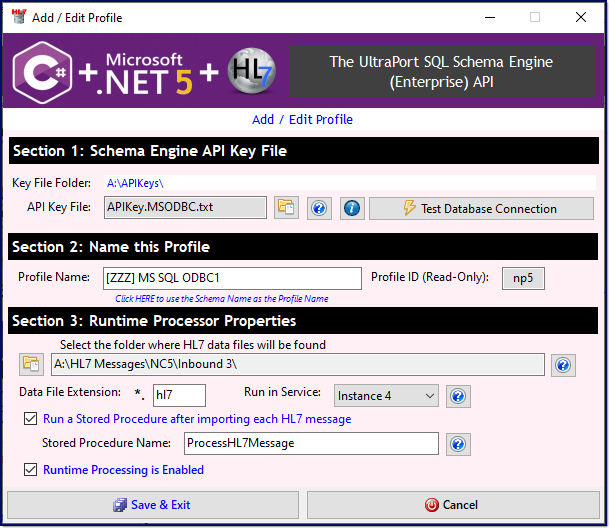 |
Step 3. In the Add / Edit Profile Window:
Edit your profile. Click the Save and Exit Button when you have finished making changes. |
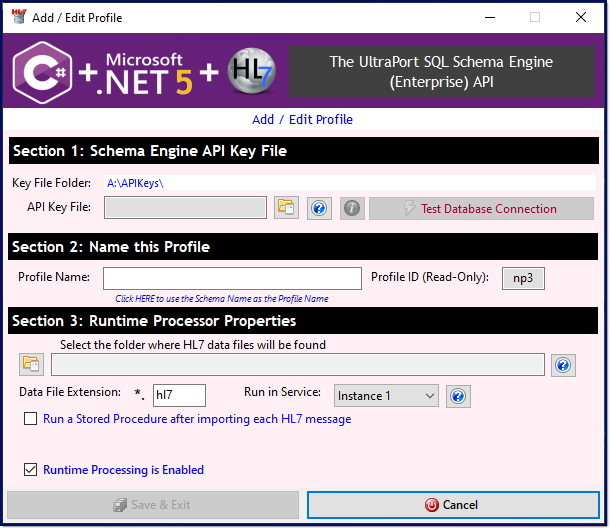
 Section 1 (Filled Out) To change your API Key File you can just click the open file button (
Click the
 Section 2 (Filled Out) You can "force" the program to name your profile (if you have selected a valid API Key File in Step 1) by clicking the blue link field under the Profile Name Field (Click HERE to use the Schema Name as the Profile Name). Clicking this will read your API Key File and set the Profile Name to the SQL Schema Profile name. IF you have OTHER profiles which are using the SAME API Key File you will note that it will append a number to the end of the profile name. As an example from the screenshot above if you had another profile already using the same API Key File it would name your profile [ZZZ] MS SQL ODBC1 (2), or [ZZZ] MS SQL ODBC1 (3) and so on.
The Profile ID field is read-only and will be automatically generated by the program. This field is used mostly in File Naming of System Log Files, Traffic Log Files, and Archive files.
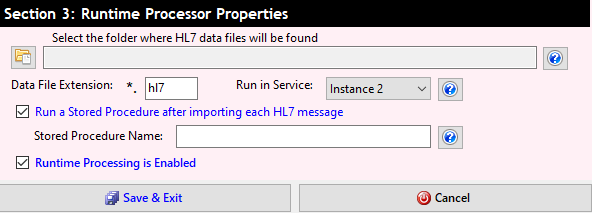 Section 3 (Empty) In Section 3 you tell your profile where to look for HL7 messages to import, which of the 4 MS Windows Services will run the profile, whether you want the program to execute a stored procedure after it imports each message (Microsoft SQL Server only) and whether your profile is enabled or disabled.
Click the browse for folder button (
If you want the program to run a Stored Procedure after importing each HL7 message you can check the Run a Stored Procedure box and then enter the name of the SQL Stored Procedure.
NOTE 1: Rules for naming and writing stored procedures follow the outline in the UltraPort SQL Schema Engine rules for Inbound Stored Procedures.
NOTE 2: Stored Procedure execution is not supported in this program for MySQL.
And finally check the Runtime Processing is Enabled box to enable your processor.
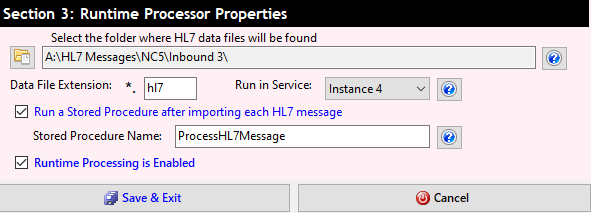 Section 3 (Filled Out)
Click the Save and Exit Button when you have finished making changes.
|
|
OR
|
Step 1. In the Main Window:
Click Actions button next to the profile you wish to delete. |
|
Step 2. In the Profile Actions Window:
Click Delete the Selected Profile button to delete the profile. IMPORTANT: This cannot be undone. |
If you are experiencing problems with your profiles and cannot find an answer on this page see Troubleshooting for more information or Contact Customer Service.