Before you begin. This product is an "enterprise" feature for customers that own the UltraPort SQL Schema Engine (Enterprise License) and uses the SQL Schema Engine API which is another "enterprise" feature. As such you need to have first configured your UltraPort SQL Schema Engine (Enterprise) to create SQL Schema API Keys and export them to the file system. You will find that when you create Processor Profiles you will have to select the API Key file you wish to use for each Listener you create.
In this product you will create "Processor Profiles", in the UltraPort SQL Schema Engine you create "Schema Profiles" which are essentially a set of database connection information for accessing a set of HL7 Schema Tables created by that product. An "API Key" is an encrypted text file containing a representation of a particular "Schema Profile" which activates the Schema Engine API to allow database access and functions like importing HL7 messages. These API Keys are produced by the UltraPort SQL Schema Engine's Database Maintenance windows service which handles all file maintenance operations.
|

 How do I Configure the Schema Engine to Produce These Keys?
While you should always refer to the online help for the SQL Schema Engine (See Online Manuals) we can give you a brief overview of what needs to be done.
 Click to Expand
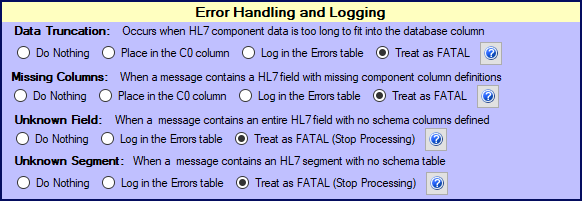
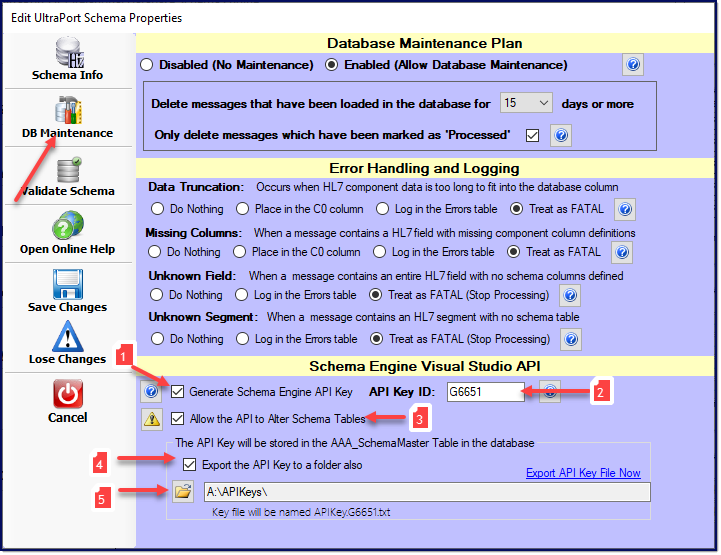
When creating or editing your SQL Schema Profile you click on the DB Maintenance button on the toolbar to access the Maintenance Settings. At the bottom of this screen is the Schema Engine Visual Studio API area which is where you set up your API Key for each profile. You need to check the boxes as shown above with only 2 differences.
To have the Schema Engine generate API Keys. When creating or editing your database schema click DB Maintenance on the toolbar and then as shown in the screenshot above:
1.Check Generate Schema Engine API Key 2.Enter the API Key ID. This is any 4 - 8 character alphanumeric value you like with the only caveat being that you cannot use the same API Key ID in another database schema. This API Key ID will be used by the Database Maintenance Service when naming the API Key File(s) it will export. Files will be named APIKey.<api key id>.txt 3.Check Allow the API to Alter Schema Tables. While this is technically optional, you must check this box if you want any application which uses your API Key to be able to perform Schema Training. 4.Check Export the API Key to a folder also. Which will make #5 visible. 5.Choose the folder where the maintenance service should export this API Key File to by clicking the button.
Save your changes and restart the Database Maintenance service (if it was running). You should see your API Key file appear in the export folder a few seconds later.
You will note that it will show you at the bottom of the screen what your key file will be named which will be APIKey.<api key id>.txt, where <api key id> is the value you entered in the API Key ID field. Once this has been set and saved, you just restart the SQL Schema Engine's Database Maintenance service and you should notice your key file appears in the folder you've selected using the naming convention shown above.
The Database Maintenance Service will create/update key files whenever the service starts and every 24 hours thereafter.
Bonus Hint: In the Schema Info section (not shown above) be sure and check the AutoTrain Your Schema box for maximum effectiveness.
|
Do I need to create an "Inbound Processor" in the Schema Engine?
NO! You do not. You CAN if you ALSO need for your Schema Engine to import HL7 messages from files in a different folder. You can use this product instead of OR in addition to a schema engine "inbound" processor.
|
An important fact about API Key Files - They EXPIRE
All API Key Files EXPIRE 60 days after they are created by the UltraPort SQL Schema Engine's Database Maintenance windows service.
Then how does the software keep working?
Answer: Because the UltraPort SQL Schema Engine's Database Maintenance windows service keeps recreating them, and every time it recreates one, it expires in 60 days. The Database Maintenance service will create a new API Key:
•Every time the Database Maintenance service starts. •Every 24 hours of uninterrupted run time that the Database Maintenance service is running. •Every time that you (or another user) makes changes to the HL7 Vendor Definitions for your Schema Profiles in the Schema Engine.
This means that if your API Key Folder in your global settings is the same folder where your SQL Schema Engine Database Maintenance Service places the API Key Files, it is constantly being updated. IF it is NOT then you should be responsible and make sure that you push API Key Files to your API Key Folder periodically.
It also means that you can FORCE a refresh of your API Key Files simply by restarting the UltraPort SQL Schema Engine's Database Maintenance windows service. |
Consider this scenario:
In my organization I have 5 different servers running the UltraPort SQL Schema Engine (Enterprise). Can I run THIS software on a 6th server and use API Keys created by the other 5 servers to import HL7 messages into those various schemas?
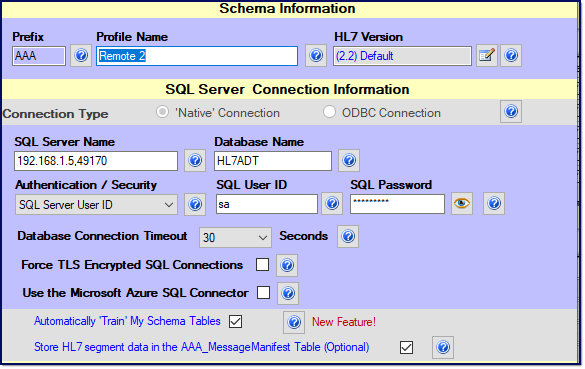
Answer: Yes, of course. Here is a quick way to determine if an API Key File created on Computer A will work on Computer B. In the SQL Schema Engine software on Computer A look at the database connection properties (see below).
If your Schema is using the Microsoft SQL Server (Native Connection)
 Schema Profile (Microsoft Native)
All that you have to do for this is look at the profile screen and ask yourself this question:
Could you successfully connect to this server using MS SQL Server Management Studio from Computer B using ONLY the information you can see on the screen?
If your answer is YES (and we advise to actually try it if possible), then an API Key File created by the Schema Engine on Computer A will work on Computer B. If your Schema Profile uses an ODBC Connection (Microsoft or MySQL Server)
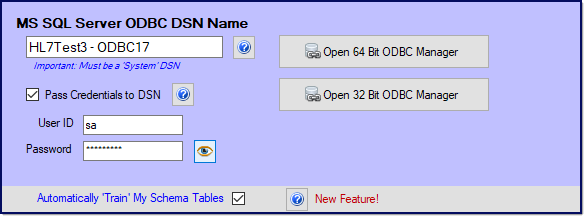 Schema Profile (ODBC Connection)
All that you have to do for this is look at the profile screen and ask yourself this question:
Could you successfully connect to this server using the API Key produced on Computer A from Computer B using ONLY the information you can see on the screen?
Now, obviously, you CAN NOT answer YES to this question UNLESS you have first created an ODBC DSN on Computer B which:
•Has the EXACT same name as the ODBC DSN on Computer A. •The ODBC DSN on Computer B connects to the EXACT same database schema as the DSN on Computer A.
NOW, If your answer is YES (and we advise to actually try it if possible), then an API Key File created by the Schema Engine on Computer A will work on Computer B.
|