Run Locally 
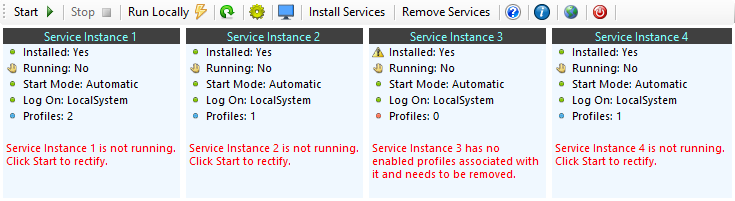
Click Run Locally on the Toolbar
Clicking Run Locally - Opens up the Run Locally Window.
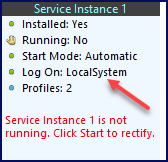
NOTE: You will notice that you cannot run locally if ANY of your Windows Services are running.
Running your profiles locally means to run them in a window so that you can watch them run and see real time results in the grid on the top half of the screen and the trace window area on the bottom half. Once the Run Locally Window is loaded click  Start Processing to get things going and when you are ready click
  Stop Processing to halt. Click
  to close the Run Locally Window and return to the Main Window.
IF you have more than 1 enabled profile the first thing you will notice when you click Run Locally is that a pop-up window will ask you to select which profiles you want to run. IF you have more than 5 enabled profiles you will also notice that this pop-up windows will not let you select more than 5. This is because the Run Locally option is limited to a maximum of 5 profiles simultaneously processing.
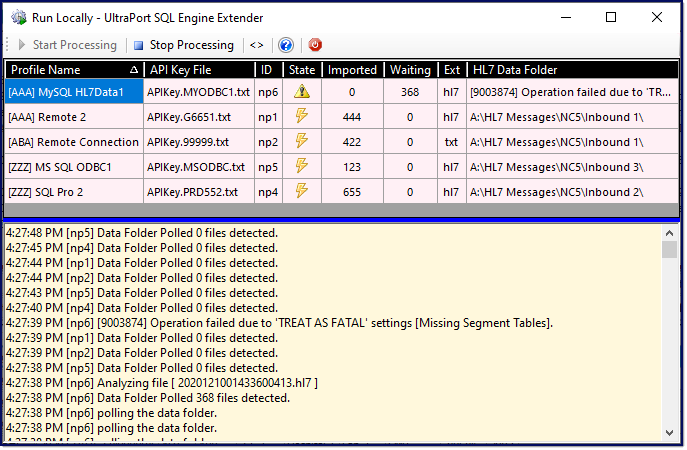
Run Locally Window
 Important: Running Locally should always be your first step if you suspect that something is wrong and you need to troubleshoot.
Example using the screenshot above: I have been monitoring my system, perhaps using a network monitoring system like WinScry (also from HermeTech), and I have received an email telling me that HL7 data files are backing up in the data folder being worked by my profile named [AAA] MySQL HL7Data1. All that I have to do is log in to the server, STOP the windows service(s) (from the toolbar in the Main Window) and click Run Locally , then click Start Processing to get things going.
I can see immediately that there are 368 files Waiting which is a problem. I can also see that the program is trying to process those files but is encountering an error, which causes it to a) Stop, b) Wait 30 seconds, and c) Try Again.
.
Why doesn't the processor just SKIP the offending file and move to the next message (or file) waiting?
Answer: Because HL7 messages are medical data and we don't really know what's in the message that's failing. So we assume that the failing message contains data which tells the recipient that the patient has a deadly allergy to penicillin. We then assume that the NEXT message waiting contains a prescription for that same patient for a healthy dose of penicillin. In that scenario you can see that it would be vitally important for the recipient to actually GET the failing message BEFORE the next message in line.
But WHY?? I paid money for my UltraPort SQL Schema Engine. WHY can't I make it skip the bad message? Can I just configure the system to do it PLEASE??
Answer: NO. We will never do that for any software which carries our company's digital signature. Ever. Period. You can a) Delete the offending HL7 data file yourself and restart your services OR b) You can address the actual ERROR and correct it and have the SQL Schema Engine recreate your API Key File and then restart your services OR c) You can get the Source Code for the program and make your own SQL Schema Extender which will just bypass that message. If you choose c) you get to OWN the decision

|