Your Global Settings are exactly that. They effect every processing profile that you create, and they must be correctly configured before you can add or edit processing profiles, or RUN any profiles that you have already created.
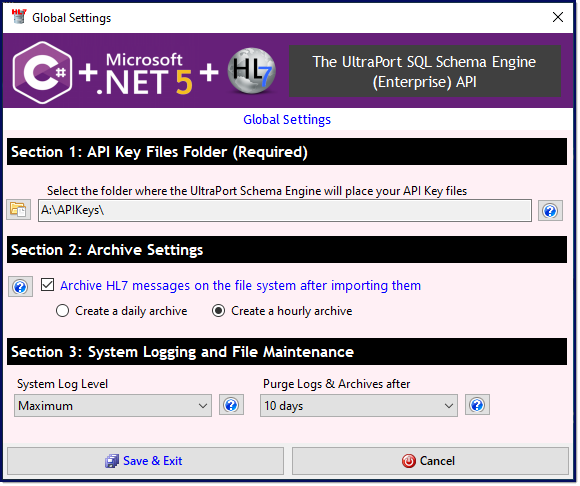
Global Settings
Section 1: Set your API Key Files Folder.
This is your most important global setting. It must point to a valid folder and this folder MUST contain the API Key Files which are created by the SQL Schema Engine (see What is an API Key File). We strongly recommend that this folder be a local folder on a HDD which is on the computer / server running the SQL Schema Extender.
To select or change the folder click the browse for folder button  .
.
Section 2: Archive Settings
Check the "Archive HL7 messages ..." box if you want each profile to save HL7 messages onto the file system after they have been successfully imported into your SQL Schema tables. If checked you would then indicate whether you want the system to create an archive file every day or every hour.
Archived HL7 data files will be stored in a sub-folder named UPN5_Archive which the program will create in the Data Folder of your profile. All archive files will have a .hl7 file extension and will be named Archive.<Profile ID>.<DateStamp>.hl7.
Example Archive File Name: Archive.np2.2020121319.hl7
You can tell from the example file name that the archive was created by a profile with the ID np2. The file was created using the "Create a hourly archive" option which you can tell by the 3rd part of the file name 2020121319 IE it was created Dec 13th 2020 for the 7 - 8 PM hour (1900 hours military time).
Section 3: System Logging and File Maintenance
Select the System Log Level (Simple, Maximum, or Extended). System log files are kept in a sub-folder of the software installation folder named Logs.
Select how long log files and archives should remain on the file system before the program deletes them. When your processor profiles are running (either Locally or as a Windows Service) they spawn a file maintenance thread every hour which will delete files that are older than your selection here which were created by the profile. The files and folders purged are:
•The Archive folder (UPN5_Archive) which is a sub-folder of the Data Folder in the profile.
•The Traffic Logs folder (UPN5_Traffic) which is also a sub-folder of the Data Folder in the profile.
•The Logs folder which is a sub-folder of the folder where the software is installed.